No products in the cart.
Your android phone holds your photos, messages and contacts, so setting up a reliable backup is essential. With google one and google drive integrated into the android system, you can back up and restore important information in minutes. If you want to back up your android phone safely and restore data without stress, this guide from Phone Expert walks you through every step. Follow along and protect your phone data today.
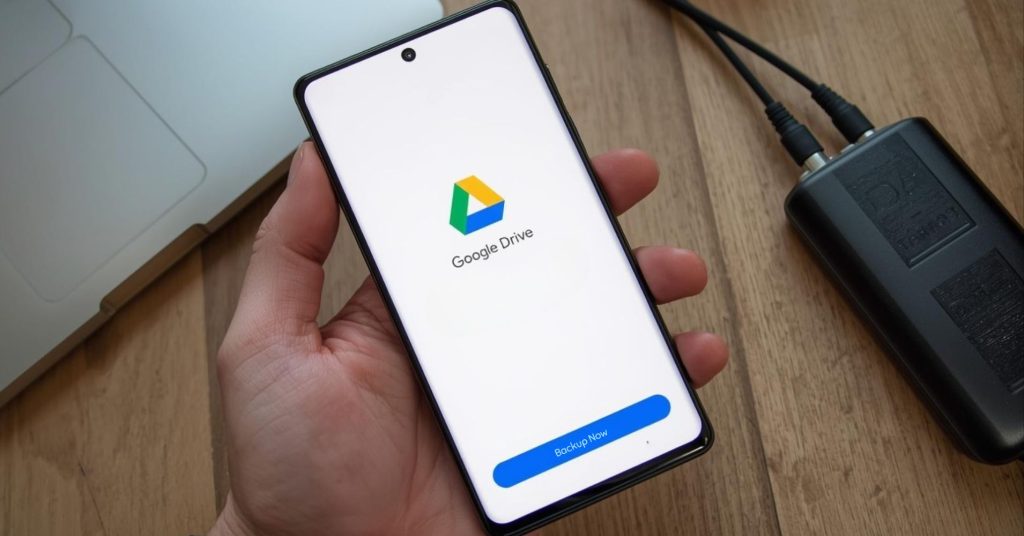
Guide on Backing Up Android with Google One and Google Drive
A proper backup android phone setup ensures your data is stored securely in the cloud and ready whenever you need to restore data. Using google one or google drive, your backup runs in the background and keeps essential data types protected.
Android includes a built-in backup feature that comes with every google account. This means you can back up content such as contacts, SMS, call logs, device data and certain app data directly to google storage. The backup by google one system is integrated into android, so you do not need complex tools or technical skills.
When you use a phone with google services, your google account data links directly from your phone to your google account. That connection allows you to move between your device and even transfer data to a new android without starting from scratch. If you are preparing your phone for repair, you can also read our guide on how to transfer data safely before phone repairs in Chermside to avoid losing important files.
What your android backup can include:
- Contacts stored in google contacts
- SMS messages and call history
- Photos and videos via google photos
- App data from supported apps
- Settings from your phone including wi-fi passwords
- Device’s screen lock preferences
This cloud service keeps your information in secure data centers, and your data is protected by your screen lock and account authentication.

How to Back Up Your Device Automatically Using Google One App
The easiest way to manage backup on an android device is through the google one app. It allows you to automatically back up data and monitor your backup details in one place.
To turn on backup:
- Open the google one app and sign in with your google account.
- Tap the backup section.
- Select the data types you want to include.
- Tap the back up now button.
Your first backup may take up to 24 hours depending on file size and internet speed. For best results, connect to wi-fi instead of mobile data and keep the phone charging.
The backup feature via google one covers SMS, call logs, photos and videos, and certain app information. If you use a Pixel device, the process is nearly identical because backup is built directly into the android system. You can explore support for these devices on our Google Pixel repairs page.
Where Your Android Phone Data Is Stored and Protected
When you enable backup, your data is saved to google drive and linked to your google account. Photos and videos are stored separately through google photos or the google photos app.
Here is how data is stored:
| Data Type | Storage Location | Access Method |
|---|---|---|
| Contacts | Google Contacts | Web or android sync |
| Photos and videos | Google Photos | Photos app or browser |
| SMS and calls | Google Drive backup | Restore during setup |
| App data | Google Drive backup | Restore on new device |
Your data is protected using encryption and tied to your screen lock pin and google account password.
If you plan to reset your device to factory settings before a repair, make sure your backup is complete. Our step-by-step article on backing up iCloud or Google before a phone repair explains what to check before handing over your phone.
How to Restore Data on a New Device or After Reset
When setting up a new device, android gives you the option to restore everything from a previous backup. This works when setting up a new phone or after you reset your phone.
To restore your data:
- Turn on your new android.
- Connect to wi-fi.
- Add your google account.
- Choose the backup you want to restore.
The new device must run a compatible android version. If you experience incomplete data transfer, check that the old device completed its last backup inside the google one app under backup details.
If you are unsure about restoring data correctly after repair or replacement, the team at Phone Expert can assist with secure setup and data recovery support.

Backup Android Phone Without Losing Photos and Videos
Many users worry about losing photos and videos during a reset. The safest approach is enabling both google photos sync and full device backup.
The google photos app sync feature uploads media automatically when connected to wi-fi. This works separately from the main android backup system and ensures your memories remain safe.
Best practice checklist:
- Turn on backup in Google settings
- Confirm google photos is syncing
- Verify last backup date
- Keep phone charging during large uploads
This ensures your photos app content remains safe even if you lose your old phone and need to restore on a new device.
Backup Solutions Beyond Google Drive
While google drive and google one cover most needs, some users prefer additional backup methods.
Alternative backup solutions include:
- Android file transfer to a computer
- Manufacturer tools from your device manufacturer
- Manual export via compatible apps
These options can supplement backup by google one but should not replace your primary cloud backup.
How to Judge If You Need to Back Up Now
If you rely on your android phone daily, enable backup immediately. Backup runs automatically once configured.
You need immediate backup if:
- You plan on setting up a new device
- Your storage is nearly full
- Your phone shows signs of failure
- You are about to reset your device
If your phone is stable and regularly synced, you may already have android backup running. Still, it is smart to back up now before issues arise.
When This May Not Be the Right Fit
Although google one works for most users, it may not suit you if:
- You avoid using google services
- You require offline-only storage
- Your organisation restricts cloud services
In such cases, manual backup or private storage systems may be better.
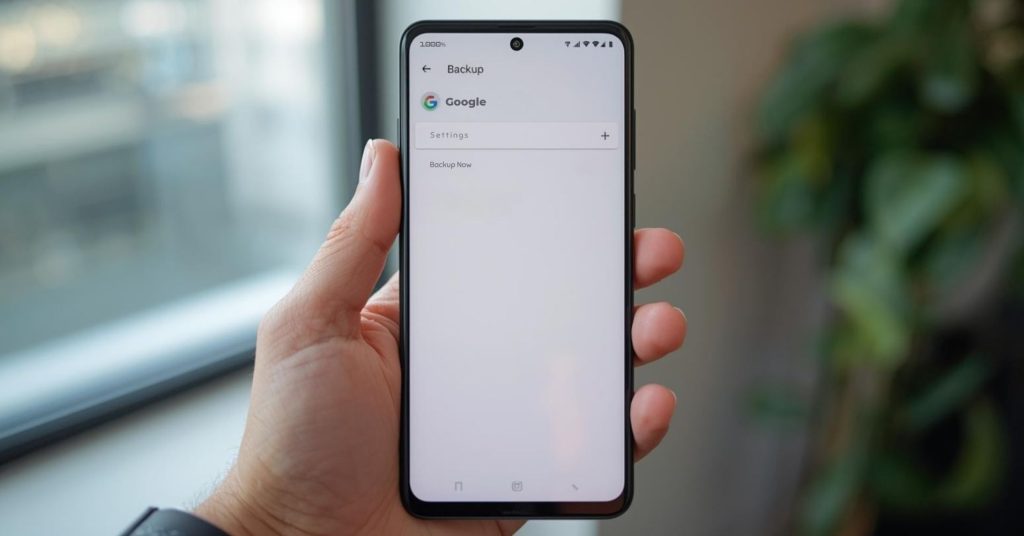
Need More Help with Android Backup
If you still need more help, check your backup settings carefully. Confirm your google account is active and verify that your backup completed successfully.
For personalised support before repair, data transfer assistance, or post-reset setup, visit Phone Expert and speak with a technician who can guide you through every step of backup and restore.